Give guests the Wi-Fi password on a printed card inside the property, with the network name written exactly as the phone lists it and a QR code beside it that joins the network directly. Then repeat the same words, character for character, in your guide and your arrival message, so the guest who loses the card still has a copy.
The order matters because Wi-Fi is the one detail in your guide a guest may need before they can go online at all. A guest on a foreign SIM with roaming off, or with a phone on 3%, cannot open a link to read the password that would let them open links. Everything else in a guide can live on a page; the Wi-Fi details need one copy that needs nothing.
Where should the Wi-Fi password go?
On paper, inside the property, where guests sit: the kitchen or coffee table first, then each bedroom, then beside the router if it is in view. A link, a PDF or a QR code that opens a web page are backups, never the only copy.
Put the card where a guest already is when they reach for their phone, which is after the suitcase is down, not at the front door. Put two or three copies, worded identically, where guests sit. A card in a drawer, inside a folder or behind the kettle is easy to miss.
What does a good Wi-Fi card look like?
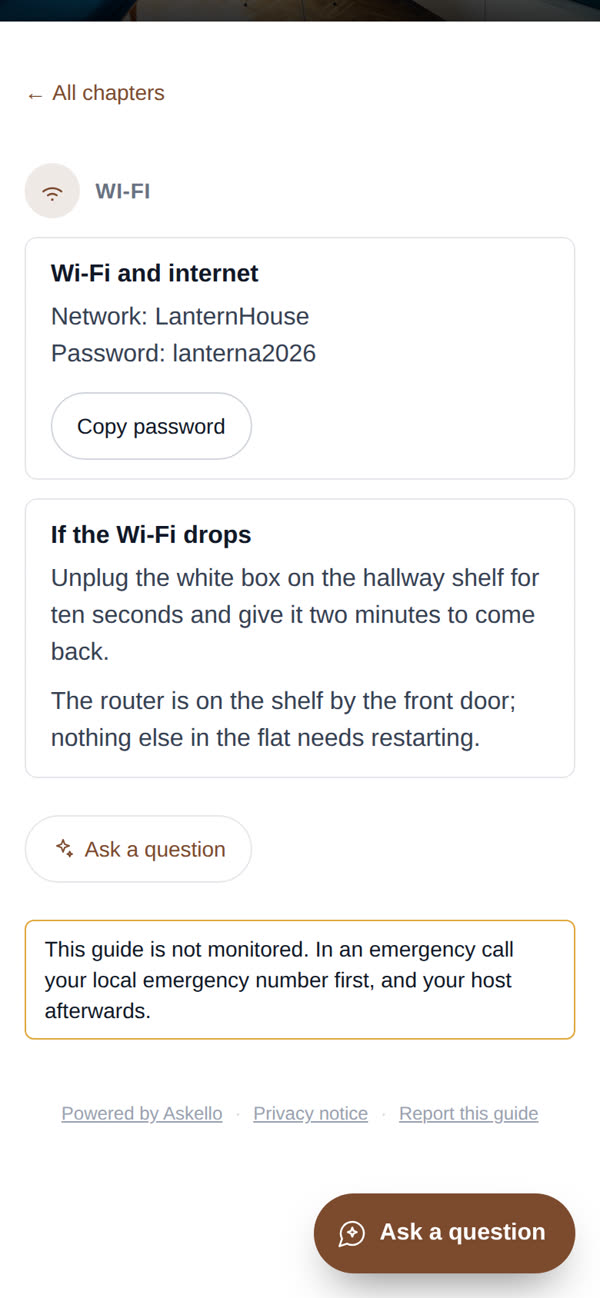
A good card names the network exactly, spells out any character that can be misread, and says what to do when the connection drops. Here is the one from the Lantern House sample guide in Sarajevo, filled in:
Wi-Fi
Network:  LanternHouse
Password: lanterna2026
(all lowercase, and the password is case-sensitive)

If the Wi-Fi drops: unplug the white box on the hallway shelf
for ten seconds and give it two minutes to come back.
The router is on the shelf by the front door; nothing else
in the flat needs restarting.
Ana’s Apartman Lanterna in Split (the Croatian sample guide) uses the same layout, filled in for her flat:
Wi-Fi
Network:  ApartmanLanterna
Password: lanterna2026
(all lowercase, and the password is case-sensitive)

If the Wi-Fi drops: unplug the white box on the hallway shelf
for ten seconds and give it two minutes to come back.
The router is on the shelf by the front door; nothing else
in the flat needs restarting.
Only the network name changes between the two cards: one layout you can reuse for every place you host.
Four details prevent mistyped passwords:
- Name the network exactly, capitals included, and say which one is yours if the phone lists
several.
BT-HUB-7A2CandBT-HUB-7A2Gare one glance apart. - Call out ambiguous characters. Capital I, lowercase l and the digit 1 look alike in many fonts; so do capital O and zero. Write “that’s a lowercase L”, or choose a password without them.
- Say it is case-sensitive. A phone keyboard can capitalise the first letter on its own, which breaks a password that starts in lowercase.
- Print it, do not handwrite it. A handwritten
rnreads asm.
If you are choosing a new password anyway, three or four plain words with no punctuation are easier to type on a phone and easier to read out on a call than a random string. If you keep a long one because you worry about who shares your network, a separate guest network on your router (if it has one) solves that without a password that is hard to type.
Should I use a Wi-Fi QR code?
Yes, as long as the code encodes the network itself, not a link to a page that shows the password. A guest points the phone camera at it and the phone offers to join, with no typing at all.
Generate the code from the network name, the security type and the password, and test it on your own phone before you print: it should offer to join the network, not open a website. A code that opens a web page fails exactly the guest who has no data, and on paper the two look identical. Android’s own help describes joining a network from a QR code: Connect to Wi-Fi networks on your Android device.
Two rules for the printed code:
- Print the typed password beside it. A laptop, an older phone or a camera app that will not read the code all need the letters.
- Regenerate it whenever the password changes. The code contains the password, so a stale one fails silently, which is worse than no code.
How do I send the Wi-Fi password with the arrival details?
Put the same block, word for word, in your guide and in the arrival message that carries the way in. Two different wordings leave a guest unsure which one is current, and the way to find out is to message you. Keep it out of the pre-arrival message sent a few days earlier, which is for planning the trip, not for getting in.
How you hand over the keys decides where the Wi-Fi line rides along:
- Key box or lockbox (as at Lantern House): put the Wi-Fi block in the same message as the box code, so the guest who has the code has the password.
- Smart lock: the door code arrives by message or app; add the Wi-Fi block under it rather than in a separate message sent later.
- In person: hand over the card with the keys and point to the table copy; say it once, then let the paper do the rest.
- Building with an intercom or a deep stairwell: if mobile signal dies at the entrance, say so in the arrival message and tell the guest the card is on the table inside.
On Airbnb, the house manual field is built for this and guests can open it in the app; Airbnb’s own guide is Write a house manual to share info about your space. Keep the password out of your public listing text. The check-in instructions template shows the full arrival message the Wi-Fi block sits inside, and if the details only ever lived in one chat message weeks ago, treat them as lost and send them again.
What breaks the Wi-Fi details later?
A router reset, a new router, or a password changed in one place and not the others. Nothing tells you when it happens, so a forget-and-rejoin check from the card is the only alarm you get.
- A reset. A support call or the recessed reset button can restore the factory network name and password from the router’s label, and every card is wrong until you notice.
- New hardware. A new router can come with a new default network name.
- The password changed, the cards did not. The guide is updated, the three printed copies in the flat are not.
- The cards changed, the guide did not. The same mistake the other way round.
The two-minute check needs no tools: on your own phone, forget the network, then rejoin it using only what is printed on the card. If it connects, the card is right. Run it after any router work, after any password change, and once between seasons.
What should a Wi-Fi checklist cover?
The card, the QR code, where the copies sit, the matching guide text and the check after a router change. Copy this block and tick it off for each place:
[ ] Printed card inside the property, not only behind a link
[ ] Network name exactly as the phone lists it, capitals included
[ ] Ambiguous characters removed or called out (l / 1 / I, O / 0)
[ ] "The password is case-sensitive" on the card
[ ] Printed, not handwritten
[ ] QR code encodes the network, tested on a phone: offers to join, opens no website
[ ] Typed password printed beside the QR code
[ ] Copies where people sit and in each bedroom, worded identically
[ ] Same block, word for word, in the guide and the arrival message
[ ] "If the Wi-Fi drops" line: which box, how long to unplug
[ ] Forget-and-rejoin check after any router change
Where does Wi-Fi fit in the rest of my guide?
Wi-Fi is the first of the questions that arrive once the door shuts; the hob, the heating and the bins follow. What guests ask most in a vacation rental orders them by stage of the stay, the welcome book template is where to write them down once, and on Airbnb the house manual is the field for them.
An online guide is a good second copy and cannot be the first. In Askello the Wi-Fi chapter shows the network and the password with a copy button, as on the sample guide, and on the paid plans a guest can ask for it in their own language and get the answer from what you wrote. A guide on the web still needs the web, which is why the printed card stays first on the list above. You can create your guide from your listing and write the Wi-Fi block once.
Questions hosts ask
What Wi-Fi password should I give guests? The password of a separate guest network if your router has one, made of three or four plain words with no ambiguous characters, printed on the card exactly as it must be typed.
What is the best way to give guests the Wi-Fi password? A printed card inside the property with the network name, the password and a QR code that joins the network directly, repeated word for word in your guide and arrival message.
Should I put the Wi-Fi password in my listing? No. Send it with the arrival details or put it in the house manual, and keep it out of the public listing text.
Does a Wi-Fi QR code work without mobile data? Yes, if it encodes the network itself: the phone joins without going online first. A QR code that opens a web page needs data and fails the guest who has none.
Do I need a separate guest network? Only if you want guests off the network your own devices use. If your router offers one, it lets you keep a password guests can type without sharing your main network.
How often should I change the guest Wi-Fi password? That is your call; what matters is that every card, QR code and guide copy changes the same day. Run the forget-and-rejoin check from the card afterwards.