Paste your guest guide link into one scheduled message on each platform: a scheduled quick reply on Airbnb, and a message template on the Booking.com template scheduler. On Booking.com you must also approve the link’s domain in your messaging security settings first, or guests see “[Link was removed]” where the link should be.
Where does the guide link go on Airbnb?
It goes in a scheduled quick reply: a saved message Airbnb sends by itself before or after an event such as check-in. Set it up once and every new reservation on the listings you choose gets it.
On a computer, per Airbnb’s help page on scheduled quick replies:
- Click Messages, then Settings.
- Click Quick replies, then Create.
- Name the template, write the message, and choose which listings it applies to.
- Under the scheduling action, pick when it is sent, for example 2 days before check-in.
- Click Save.
Airbnb can fill in booking details for you, such as the guest’s first name and the check-in date and time, so one message works for every guest. Paste the guide link as plain text in the message itself.
Where does the guide link go on Booking.com?
It goes in a message template, which the template scheduler then sends at a stage you pick. Do it in the extranet or the Pulse app, per Booking.com’s help page on templates:
- Click Property, then Messaging Preferences.
- Open the Message templates tab and click Create new template.
- Write the message and paste the guide link. The pre-filled information blocks add booking details for you.
- Confirm the language, click Continue, give the template a name and a topic, and click Save template.
- Open the Template scheduler tab, click Schedule a template, pick when it goes out and which template, then click Add to schedule.
The stages Booking.com offers are: when a guest makes a booking, one week before arrival, three days before arrival, one day before arrival, on the day of arrival, and one day before departure.
Why does Booking.com remove my link?
Because the link’s domain is not on your approved list. Booking.com removes links you have not approved from messages to guests, and the guest sees “[Link was removed]” instead, per its help page on messaging security.
To approve your guide’s domain:
- Click Property, then Messaging preferences, then Security settings.
- Complete two-factor authentication.
- Click Add a link and enter the domain your guide link starts with (for a guide on this
site,
getaskello.com). - Click Add domain.
With several properties on one group account, pick one property, add the domain, and click Apply to all properties. If Block all links is switched on, no link reaches guests, approved or not.
What should the message with the link say?
Say what the guide holds, so the guest knows to open it: arrival, Wi-Fi, house rules. Keep the door code out of anything sent days ahead and put it in the check-in instructions instead. Copy this, fill in the brackets, and schedule it:
Hi [guest first name], we are looking forward to having you on [check-in date].

Everything for your stay is in one guide, on your phone, nothing to install:
[your guide link]

It has how to get in, the Wi-Fi, parking and the house rules. Check-in is from
[check-in time]. Save the link: it works at the door too.

[your name]
What does a filled-in message look like?
Here it is for the two sample places. The link shown is the sample’s own address, standing in for yours.
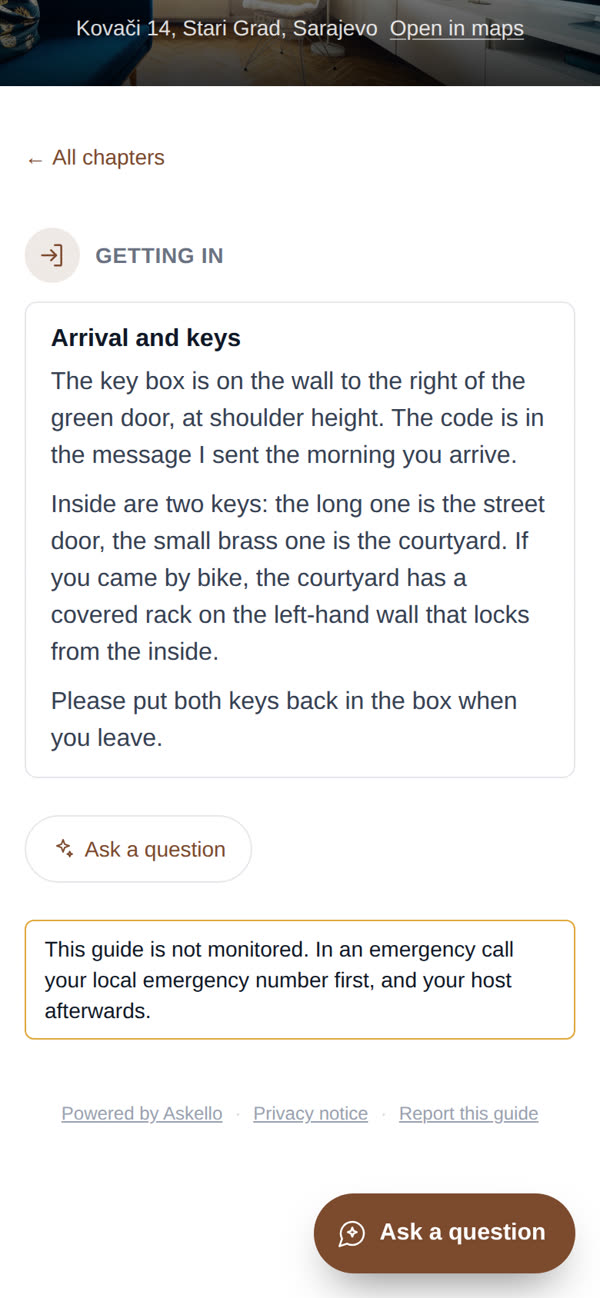
Lantern House, Sarajevo (key box, Airbnb, 2 days before check-in):
Hi Emma, we are looking forward to having you on 24 October.

Everything for your stay is in one guide, on your phone, nothing to install:
getaskello.com/sample

It has how to get in, the Wi-Fi, parking and the house rules. Check-in is from
15:00 at Kovači 14. The key box is to the right of the green door. Save the
link: it works at the door too.

Selma
Apartman Lanterna, Split (key box, Booking.com, three days before arrival):
Hi Lukas, we are looking forward to having you on 2 November.

Everything for your stay is in one guide, on your phone, nothing to install:
getaskello.com/hr/sample

It has how to get in, the Wi-Fi, parking and the house rules. Check-in is from
15:00 at Šperun 12. Save the link: it works at the door too.

Ana
For a smart lock or a keypad, keep the code out of this message and send it in the check-in instructions. For an intercom, add the name on the button. For check-in in person, add the number to message when the guest is 30 minutes away.
When should the scheduled message go out?
Schedule it two to three days before check-in; Airbnb’s own example is 2 days before. If you already send a pre-arrival message three to five days ahead, put the link in that message instead of sending a second one.
Where do I find my guide link?
In the guide tool you use. In Askello it is under Share with guests once the guide is published: Copy link puts it on your clipboard, ready to paste into either platform. The same link is the one the printed QR code opens, so the message and the card at the door lead to the same place. The Wi-Fi guide shows what guests find there for the network and password.
Questions hosts ask
Where do guests find check-in instructions on Airbnb? In their trip details, per Airbnb’s help page. A scheduled quick reply with the guide link puts the same steps in a message as well.
What is the best way to send check-in instructions for a vacation rental? Schedule them on each platform you list on, with the guide link in the same message, so the guest can open the full instructions again at the door.
Can I send the same message on Airbnb and Booking.com? Yes. Write it once and paste it into both, then approve the link’s domain on Booking.com.
Do I have to set it up for every booking? No. Both platforms send the scheduled message to each new booking on the listings or property you chose.